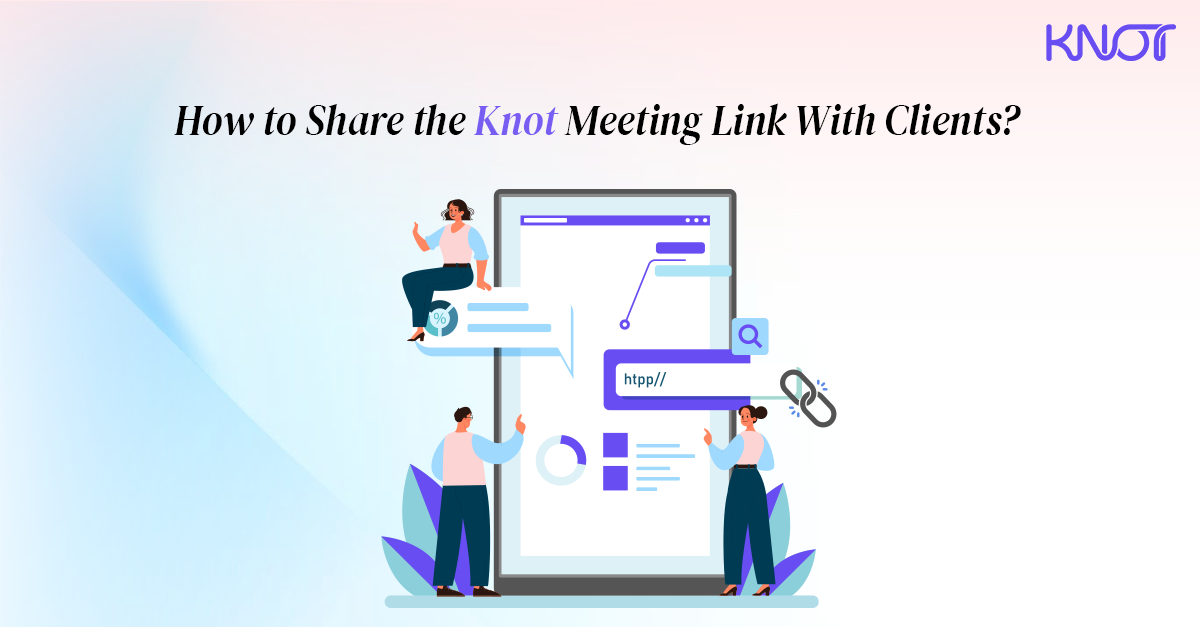
How to Share the Knot Meeting Link With Clients?
Starting your journey with Knot event scheduling software and fully adapting the capabilities might be tricky at first, but the true potential holds the capability to scale up your operations.
Starting your journey with Knot event scheduling software and fully adapting its capabilities might be tricky at first, but the true potential holds the capability to scale up your operations.
Rest assured, the learning curve with Knot is quite low and can easily be incorporated into your daily operations. This article shares a comprehensive walkthrough of how you can share the Knot meeting link.
2 Ways to Share Knot Link With Clients
As of the current version, Knot offers two methods for sharing your meeting link with clients. Either you directly share the link by copying it from the dashboard, or embed the script onto your website.
Here is a detailed step-by-step walkthrough on how to navigate the dashboard and how to share it. But at first, you would need to create an event from the event section.
To know the detailed process, you can refer to the setup blog for Knot.
#Method 1 - Share Directly Via Dashboard
An admin can get the meeting link from their dashboard, and here’s exactly how.
-
First, log in to your Knot admin dashboard and navigate to Scheduling >> Kebab Menu >> View.

-
You will be navigated to the next panel, where you will be provided with all the necessary information. At the top of the page, you will get the link that lets you copy and share it with your client.

-
Click on “Copy,” allowing you to share your meeting across various platforms.
Here is the first hassle-free method to share your meeting link with clients. Now moving on to the other method, which is embedding the script into your website or any URL.
#Method 2 - Embed Script
To generate an embed script, go to Scheduling>> >> Kebab Menu >> View.
Navigate to the “Embedded Scripts” section.

Enter the domain name; in this case, we have taken Knot as an example. Click on “Generate Script.”

Copy the snippet and paste it in the head of the website.

Knot meeting schedule link will be integrated onto your website.

Wrapping Up
Here’s the illuminative guide on how seamlessly you can share your Knot meeting link with your client, leveraging these two methods. Our automated appointment reminder makes the entire flow of communication much more seamless for your operations.
If you are already using Knot, stick with us to get more insights and an overall guide to fully tap into the potential.